
Working your leads
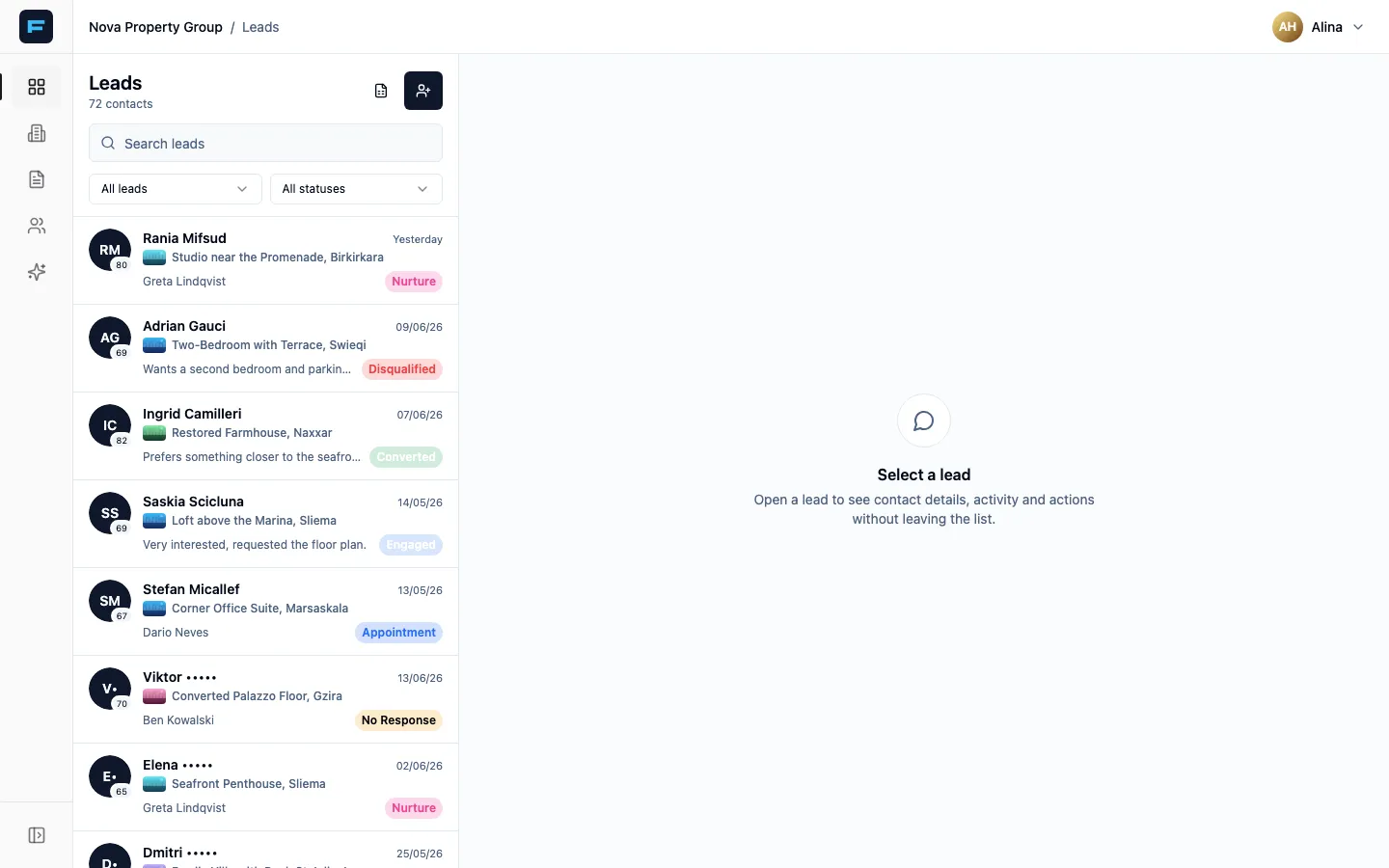
This is the screen you will have open all day. The list of enquiries is on the left; whichever one you open fills the panel on the right.
Finding the lead you want
Section titled “Finding the lead you want”Search matches across everything — name, surname, property, email — and a phone number is matched exactly, so pasting a number straight from your call log works. Searching starts from two characters.
Filters sit under the search box:
- All leads narrows to a source, such as advert leads or web-only leads.
- All statuses filters by where the lead has got to.
Unassigned leads are always pinned to the top of the list, whatever you have sorted by. That is deliberate — an unowned enquiry is the most expensive thing on the screen.
Taking a lead
Section titled “Taking a lead”A lead reaches you one of two ways.
Assigned directly. It simply appears in your list with everything visible. Start working it.
Requested. Your manager has asked you to take it. The row is amber, marked Pending your approval, and the surname, phone and email are masked until you answer.
-
Open the lead. Read what they enquired about and their budget — that is visible before you accept.
-
Press Accept to take it. The contact details unmask immediately and the lead is yours.
-
Or press Decline, and it returns to the unassigned pool for somebody else.
The seven statuses
Section titled “The seven statuses”Set the status the moment you know something. It is the fastest signal you give your manager.
| Status | Use it when |
|---|---|
| Unclear | Nobody has worked it yet. The starting state. |
| No Response | You have tried and not reached them. |
| Engaged | You have spoken. There is a real conversation. |
| Appointment | A viewing is booked. |
| Converted | They bought or rented. The goal. |
| Disqualified | Not a real buyer — wrong budget, wrong country, a mistake. |
| Nurture | Real, but not now. Come back in a few months. |
Change it from the status dropdown on the row, or from the open lead.
Writing the comment
Section titled “Writing the comment”The comment is the most valuable thing you type into Formule. It is what your manager reads instead of interrupting you, and it is what reminds you what happened when you come back in three weeks.
Write what actually happened and what happens next:
Spoke Tuesday. Wants 3 beds not 2, budget stretches to €620k for the right thing. Viewing the Sliema loft Saturday 11am. Call Friday to confirm.
Not:
Called.
Your manager can request a comment on a lead that has none, and request feedback once there is one. Both appear on your row until you answer.
Opening a lead
Section titled “Opening a lead”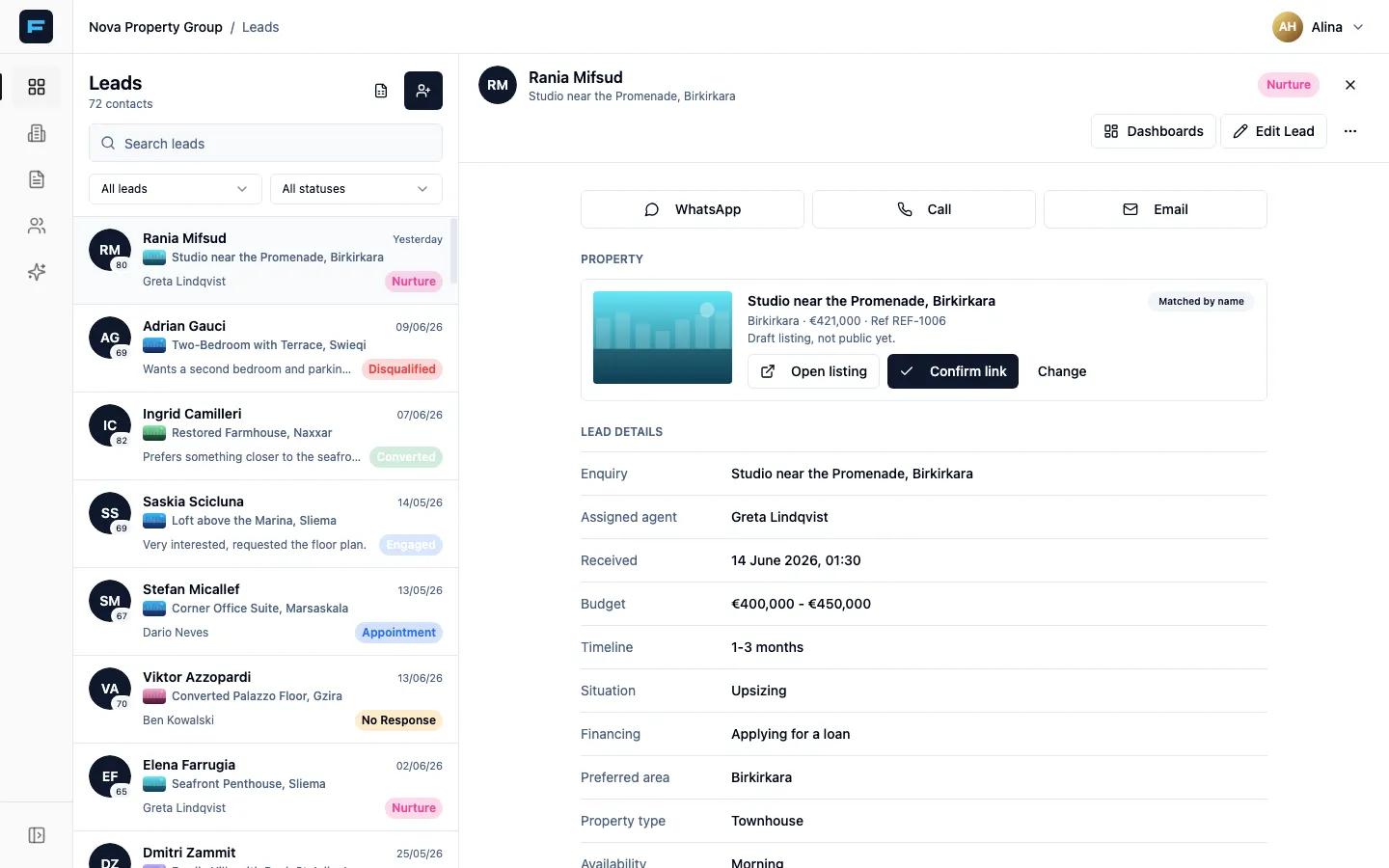
The open lead gives you, in order:
- Contact details — the email and phone are clickable.
- Property Interest — what they enquired about, their budget, their timeline, and how and when they want to be contacted.
- Agent Assignment — who owns it now, since when, and who had it before.
- Timeline — created, assigned, last comment.
- Lead Qualification — appears only once somebody has filled it in.
- Related Leads — the same person enquiring about other properties. Worth reading before you call; they may be further along than you think.
Creating a lead by hand
Section titled “Creating a lead by hand”Most leads arrive on their own. Enter one by hand for a walk-in or a phone call.
Press Create lead — the person-with-a-plus icon above the list.
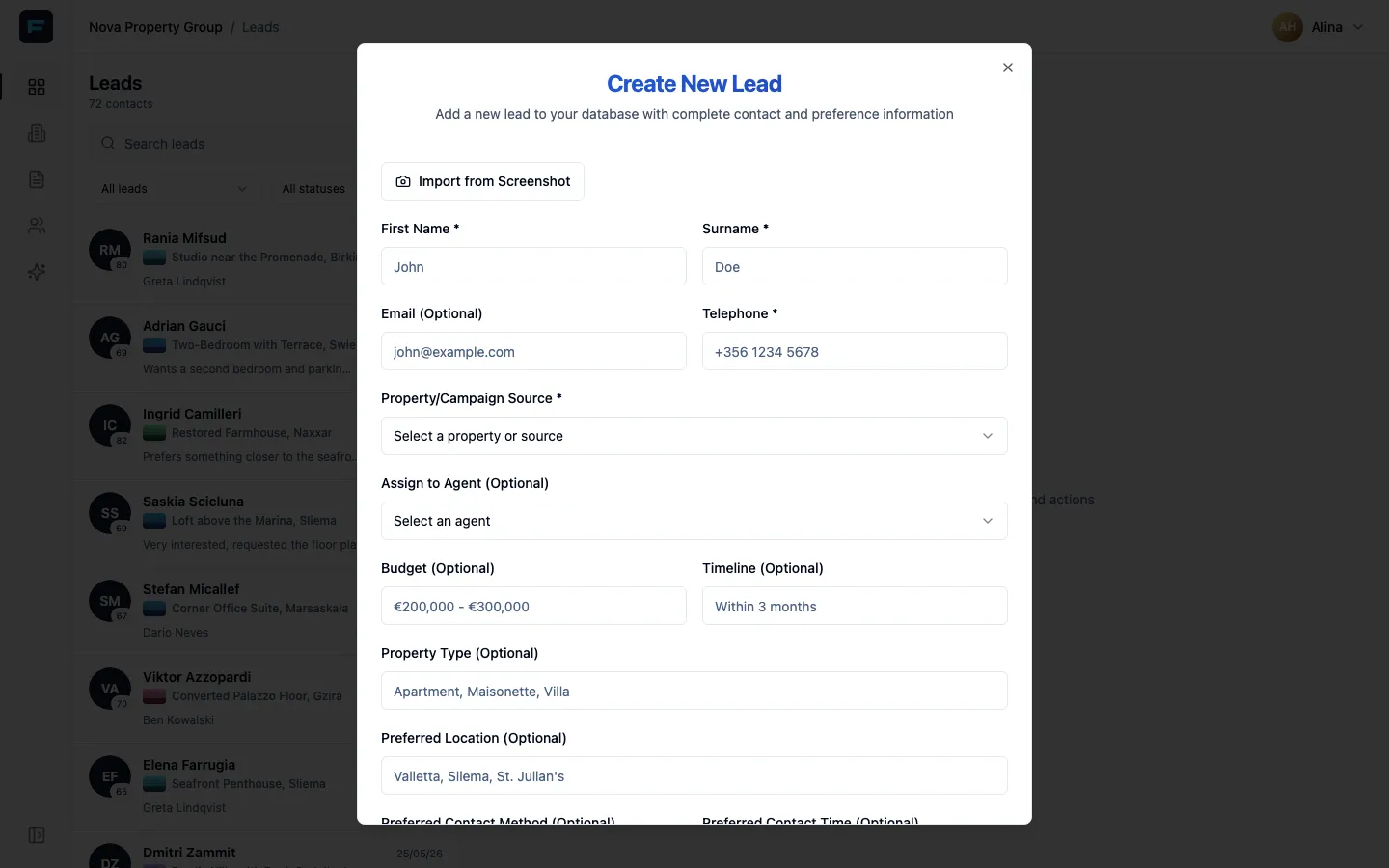
First Name, Surname, Telephone and Property/Campaign Source are required. Everything else helps you later but can wait.
Importing a batch
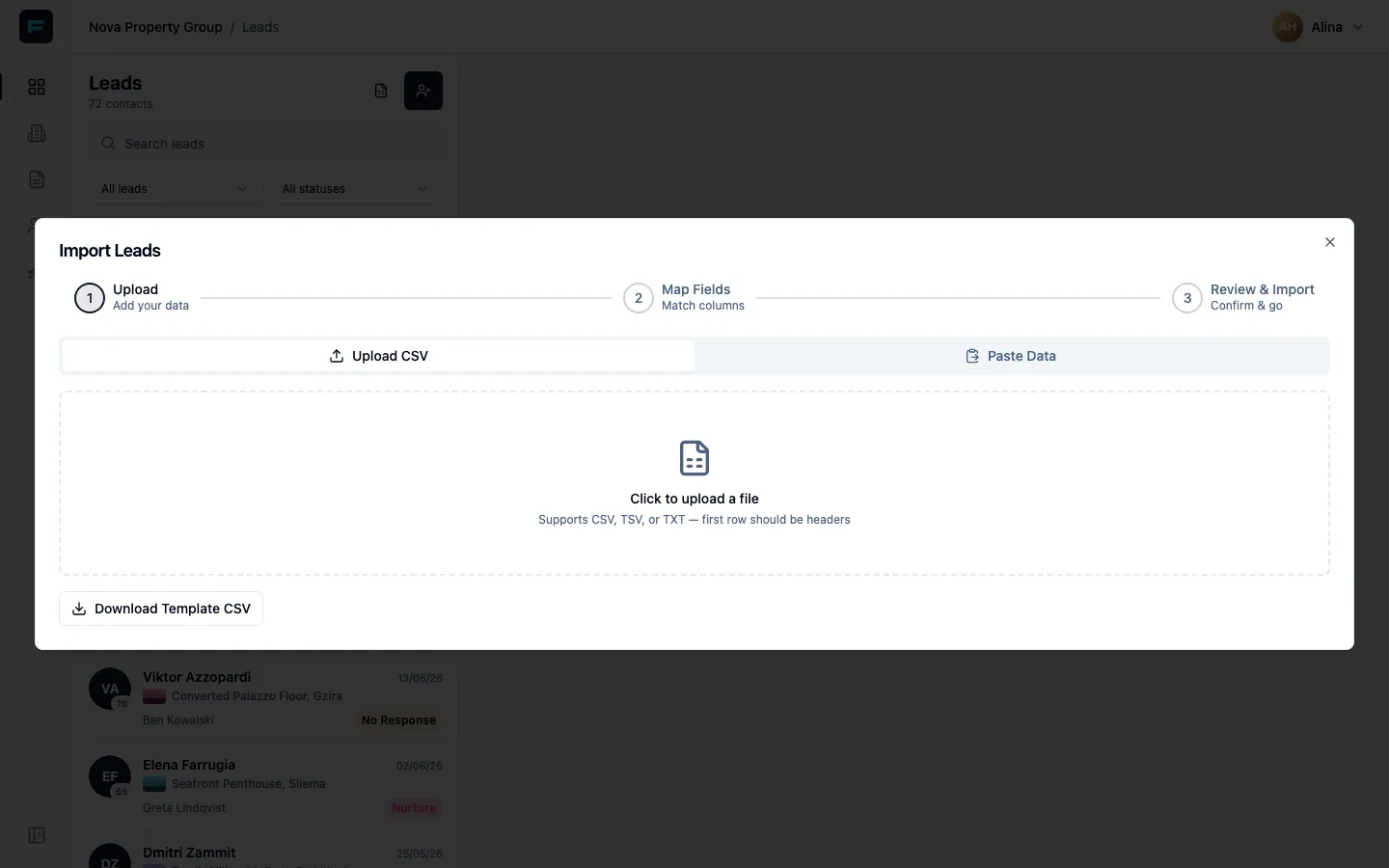
Section titled “Importing a batch”Got a spreadsheet of enquiries? Press the Import leads icon next to the create button.
-
Upload a CSV, TSV or TXT file — the first row must be headers — or switch to Paste Data and paste straight from a spreadsheet. Download Template CSV gives you the right shape.
-
Map Fields. Match your columns to Formule’s. Name and Telephone are mandatory; the step will not let you past without them.
-
Review & Import. Check the preview, then import.
As an agent, imported leads are assigned to you automatically.
Hiding a lead you do not want
Section titled “Hiding a lead you do not want”Open the lead, press the pencil, and choose Hide from my dashboard. It leaves your list but stays visible to your manager. To get hidden leads back, switch on Show my Hidden Leads dashboard in your agent profile.
Where to go next
Section titled “Where to go next”- Adding and editing listings — the properties your leads ask about.
- The Telegram assistant — ask about your leads without opening the app.