
Your first hour
By the end of this page you will have signed in, created a property, and created a lead against it. That is the whole loop in miniature — everything else is detail.
Before you start
Section titled “Before you start”You need an invitation. Formule is invite only: either the Formule team has set up your agency, or your agency manager has sent you a join link. There is no sign-up form.
Sign in
Section titled “Sign in”-
Go to app.formule.io.
-
Press Continue with Google and pick the account your invitation was sent to.
This is the only route in for most people. The email-and-password form exists for Formule staff and is not shown on the normal sign-in screen.
-
You land wherever makes sense for you: agents and managers go straight to their agency’s Leads workspace. If you belong to more than one agency you get a Select a Company card first.
Look around
Section titled “Look around”You arrive in the leads workspace. The list of enquiries is on the left, and whichever one you open fills the panel on the right.
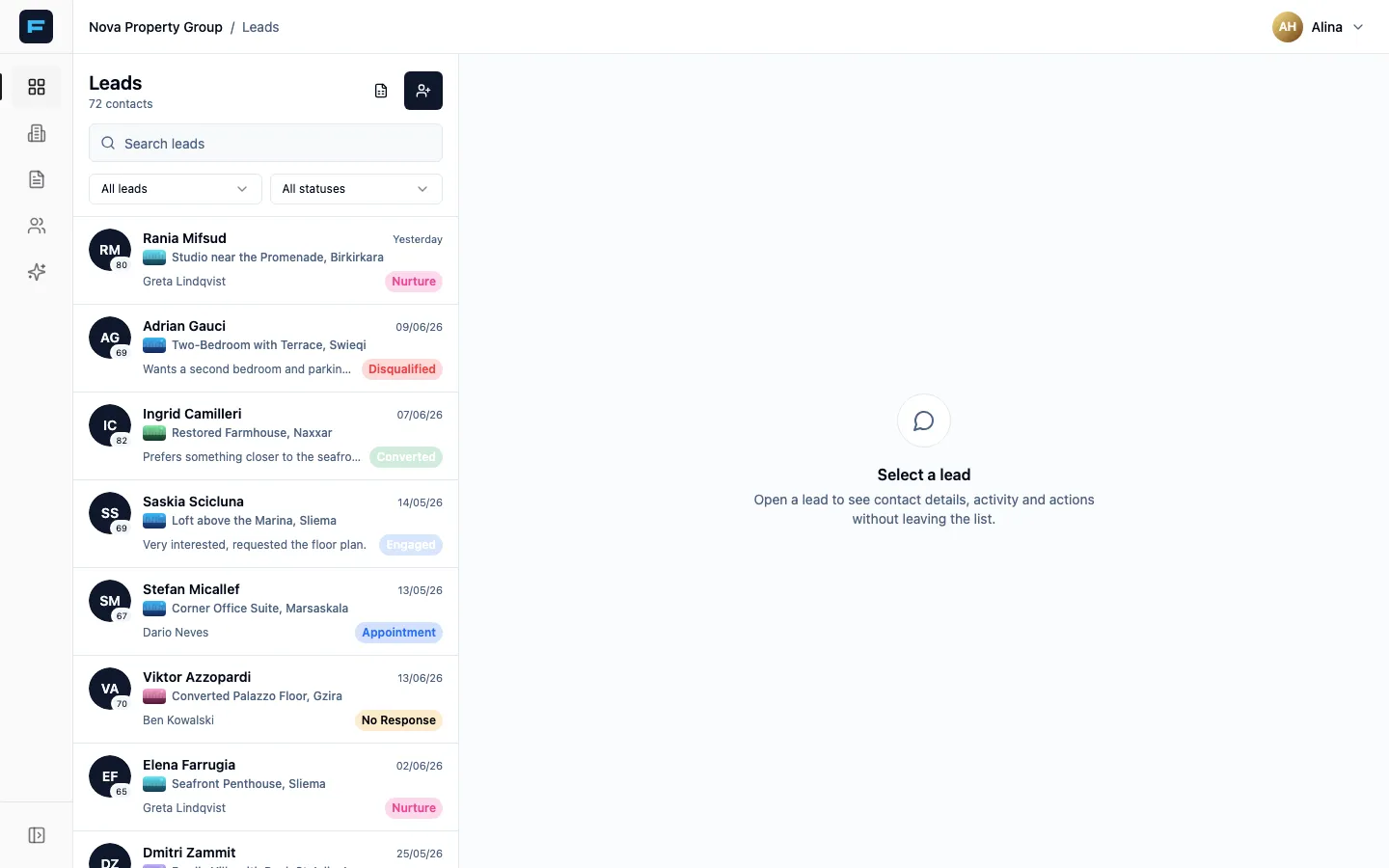
The narrow strip of icons down the far left is the whole menu. It is deliberately small — Finding your way around names every icon.
Add your first property
Section titled “Add your first property”-
Click the Listings icon in the left rail.
-
Press Create Property Listing at the top right.
-
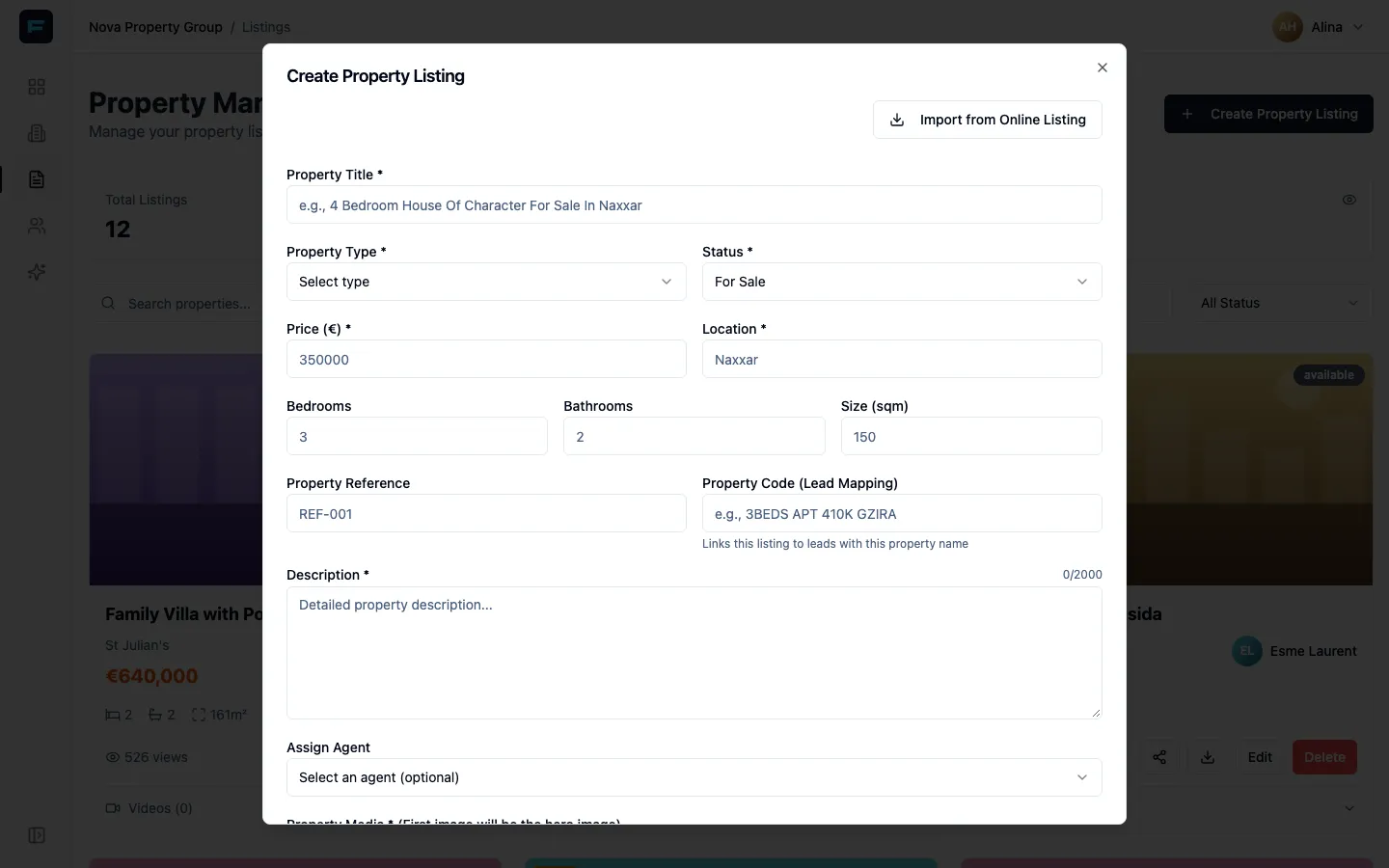
Fill in the four things that are genuinely required: Property Title, Price, Location and Description. Pick a Property Type and a Status (“For Sale” or “For Rent”).
-
Drag in some photos under Property Media. The first image becomes the header image on the property’s public page, so choose it deliberately.
-
Turn on Publish immediately if you want the public page live now. Leave it off and the listing is saved as a Draft, visible only inside Formule.
-
Press Create Property Listing.
Your property now has a public page of its own. Sharing a listing covers what that link looks like and where to paste it.
Add your first lead
Section titled “Add your first lead”Most leads arrive on their own, from adverts and from your website. You can also enter one by hand — useful for a walk-in or a phone call.
-
Go back to Leads.
-
Press the Create lead button — the person-with-a-plus icon at the top of the list.
-
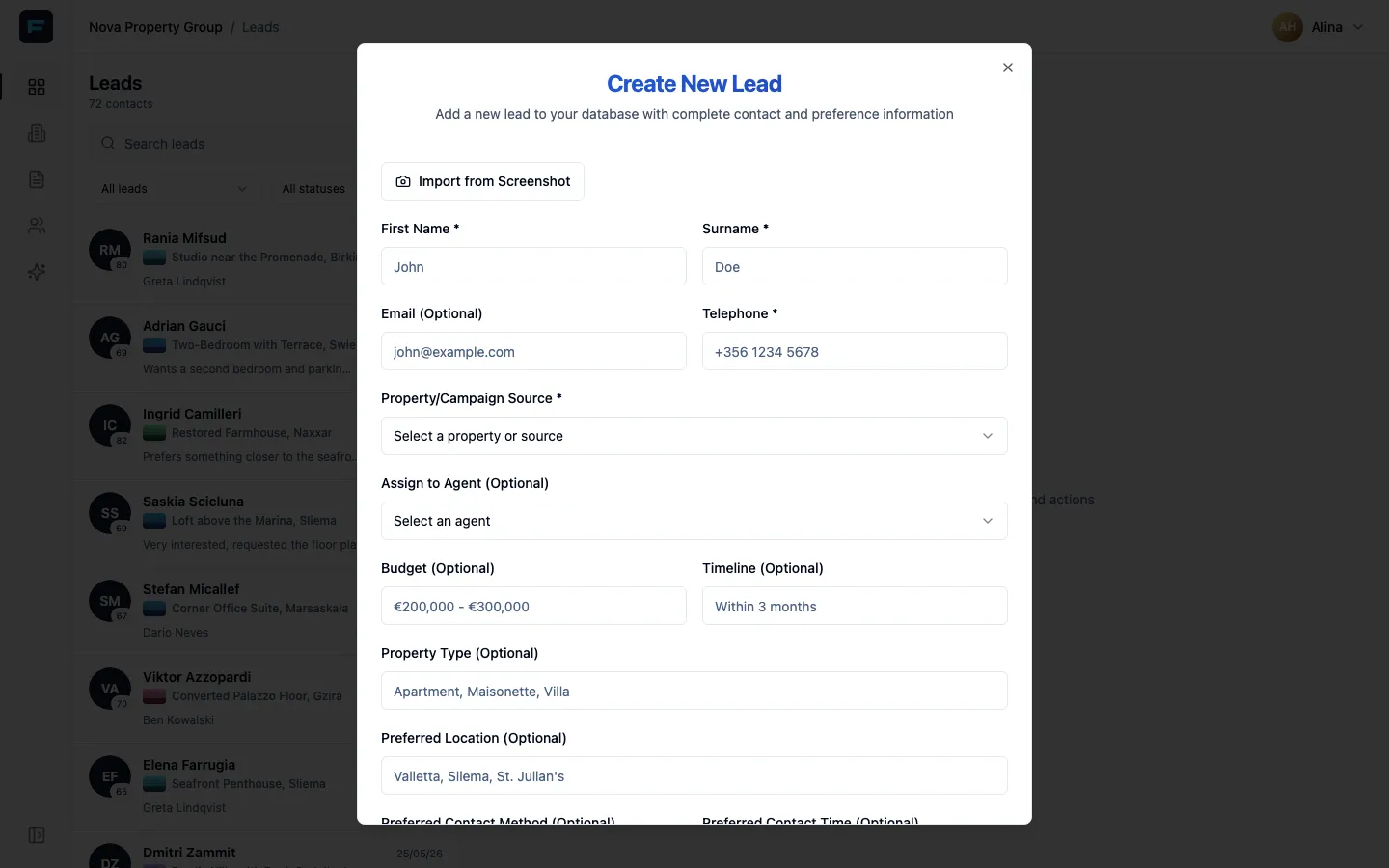
Fill in First Name, Surname and Telephone. Those three are required; everything else can wait.
-
Under Property/Campaign Source, pick the property you just created. This is what ties the enquiry to the listing, and it is what makes the campaign reporting work later.
-
If you are a manager, set Assign to Agent. If you leave it as Unassigned the lead sits in the pool for someone to pick up.
-
Press Create Lead.
Work it
Section titled “Work it”Open the lead you just made. On the right you get the contact details, what they enquired about, who owns it, and the history.
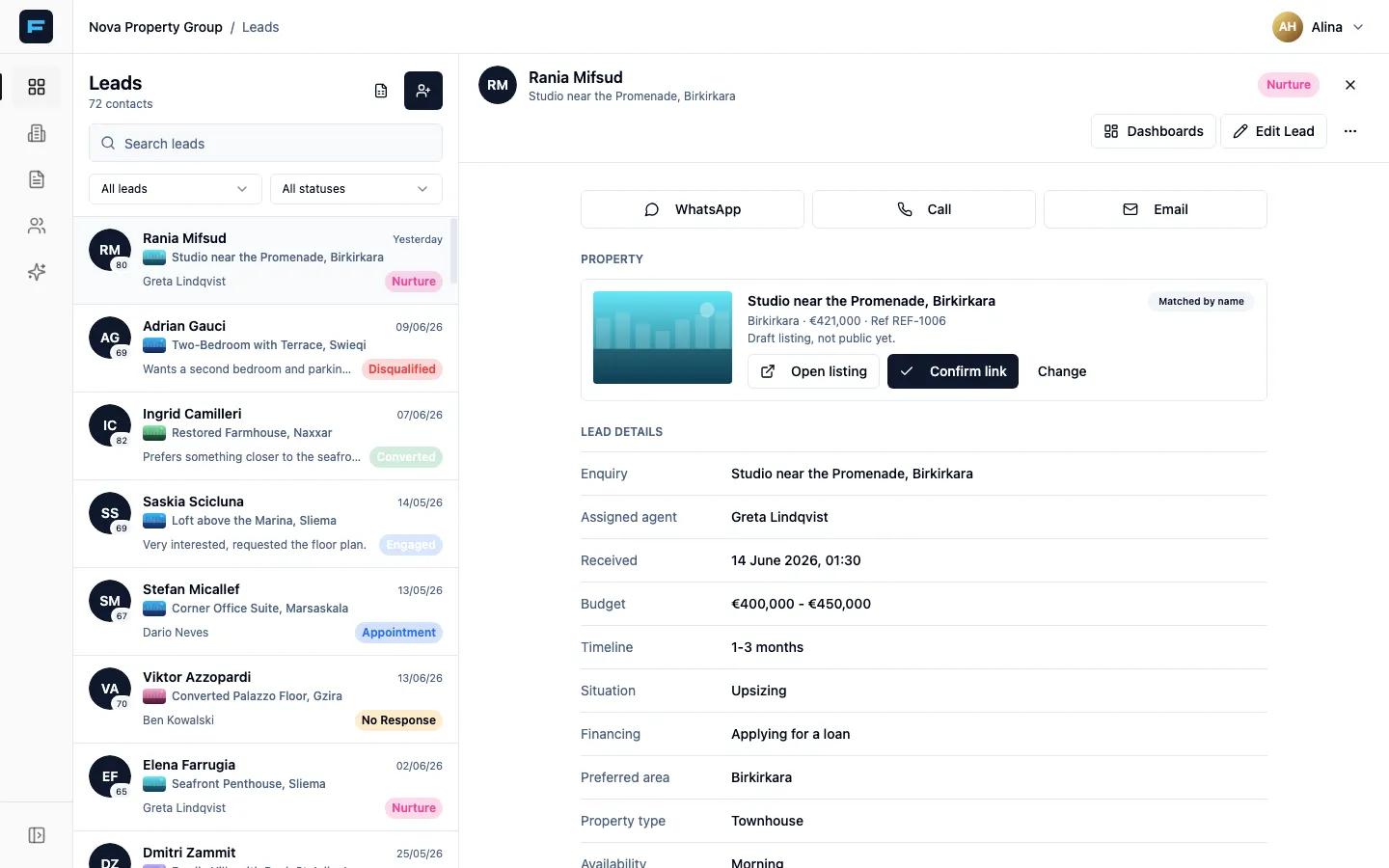
Two things matter more than anything else on this screen:
- Status — where the lead actually is. Move it off Unclear as soon as you know anything.
- Comment — what happened when you called. This is what your manager reads, and it is the single biggest difference between an agency that closes leads and one that loses them.
What next
Section titled “What next”- Agents: Working your leads is the real version of this page.
- Managers: Setting up your agency, then inviting your agents.
- Everyone: connect the Telegram assistant so you can ask about your leads without opening the app.