
Inviting and managing agents
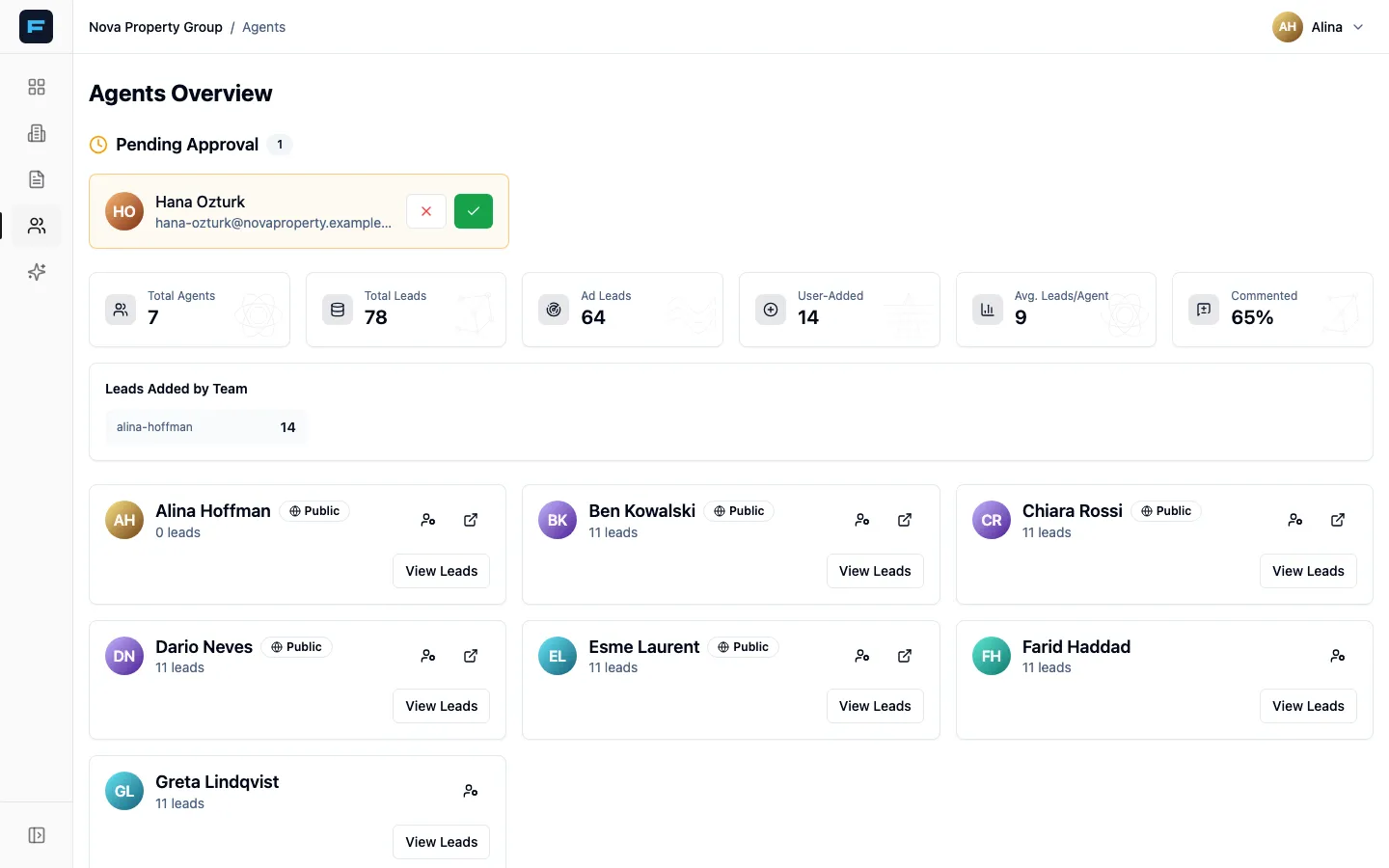
The Agents screen is your team roster: who is active, how many leads each holds, and who is waiting to be let in.
Inviting an agent
Section titled “Inviting an agent”Every agency has a public join link:
app.formule.io/join/your-agency-slugReplace your-agency-slug with your agency’s name as it appears in your own
address bar when you are signed in. Anyone with the link can apply — no login
needed. Send it by WhatsApp, put it in a job advert, hand it out at an interview.
The applicant fills in a form covering their experience, the price ranges and areas they work, how they prefer to be contacted, and their social links. When they submit, they see Application Submitted! and the application lands with you.
Approving applications
Section titled “Approving applications”A Pending Approval section appears at the top of the Agents screen whenever somebody is waiting, with a count.
-
Read the application — name, email, and what they filled in.
-
Press the green check to approve. They can now sign in and start receiving leads.
-
Or press the red X to decline.
Approved agents move into the main grid immediately.
Reading the roster
Section titled “Reading the roster”The stats across the top give you Total Agents, Total Leads, Ad Leads, User-Added, Avg. Leads/Agent and Commented as a percentage.
Commented is the number to watch. It is the share of leads with a comment on them — in other words, the share your team has actually worked rather than merely received. A high lead count with a low comment percentage is an agency losing money.
Each agent card shows their photo, name, a Public badge if their profile is live, and their lead count. From it you can:
- View Leads — everything assigned to that agent.
- Edit their profile — the pencil icon.
- Open their public profile — the external-link icon.
When an agent leaves
Section titled “When an agent leaves”-
Open View Leads for that agent.
-
Press Remove All Leads at the bottom. Confirm.
Every lead they held returns to the Unassigned pool — it does not delete anything.
-
Redistribute from the unassigned pool. See Assigning and routing leads.
-
Ask your Formule contact to revoke their access.
Advertising budgets
Section titled “Advertising budgets”If your agency has advertising budgets enabled, each agent’s profile carries a Monthly Budget card with their ad counts and a history of changes. The figure itself is editable only by super admins, advertisers and finance admins — managers see it read-only.